01.01 README - Introduction
Course Introduction
Hello! My name is Shane Panter, and I will be your instructor for this class. In this class, we will continue where CS208 left off, learning about full-stack web development. We will start the first part of this course with a review of CS208 material. We will then spend the rest of the semester building a full-stack website of your design and hosting it on AWS.
Project
During the semester, you will design, build, and deploy a website of your design. This class is designed to give you complete flexibility and control over choosing the languages, frameworks, and other technologies to build your website. The only requirement is that you must have a method to make your website available on the public internet. I will provide you with an AWS login, which you can use to spin up your own virtual machine in the cloud.
Using Rubrics
For the remainder of the semester, we use rubrics in Canvas to make grading transparent, consistent, and aligned with the learning goals for each assignment. Rubrics describe precisely what is expected for full credit and how each part of your work will be evaluated.
Rubrics in Canvas Discussions
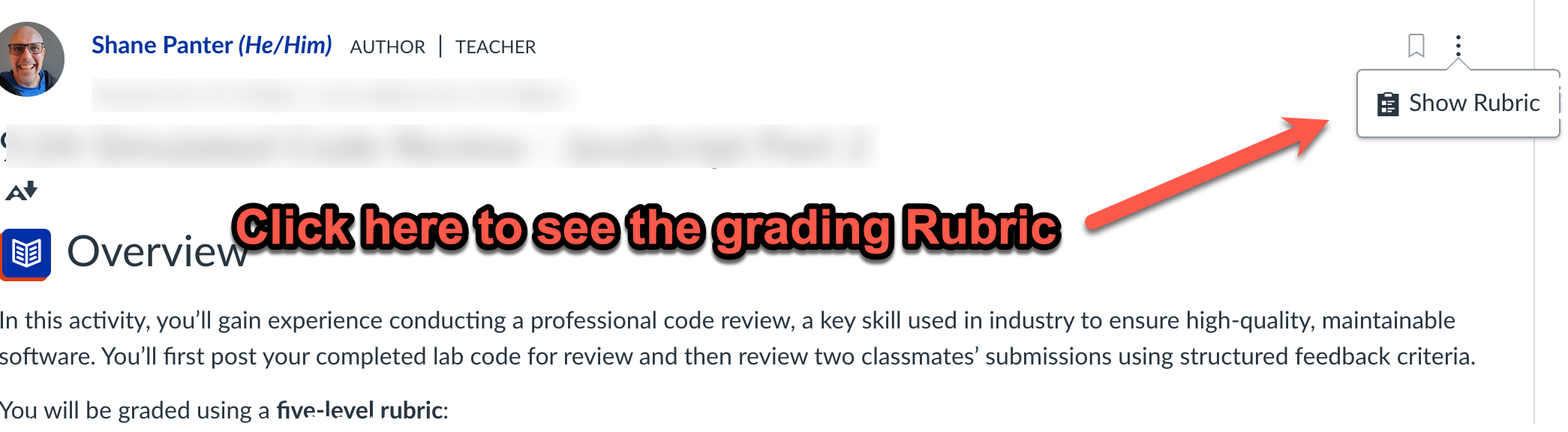
For discussion-based assignments (like the Final Project Checkpoints), the rubric is attached directly to the discussion page.
To access the rubric:
Go to the Discussion for the assignment.
On the right-hand side (or below the prompt, depending on your view), click Show Rubric (see the screenshot below).
Review the criteria before you start. It shows how each part of the assignment will be graded.
After you’ve submitted your post or reviews, you can return to the same place to see instructor feedback and scores for each rubric category.
How to View the Rubric and Feedback in the Gradebook
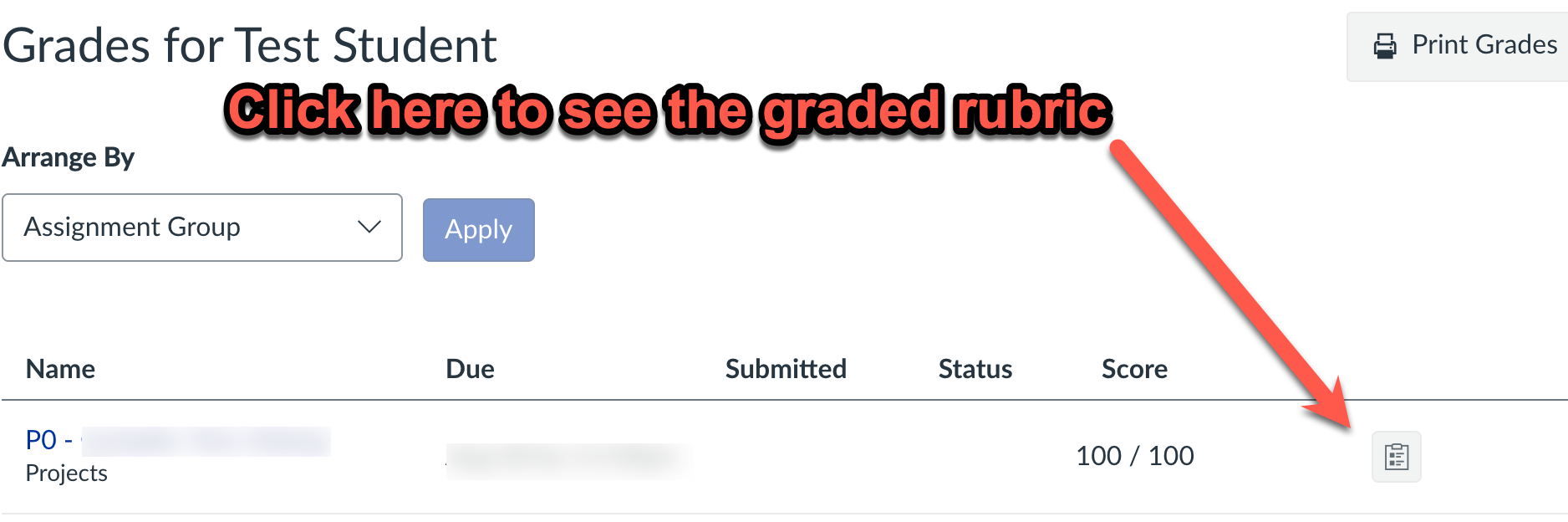
After your instructor has graded your discussion or assignment, you can view your rubric scores and comments directly from the Canvas Gradebook.
To view the rubric in the Gradebook
Open Canvas and click on the “Grades” link in the course navigation menu.
Locate the assignment in your list of graded items.
Click the assignment title or the rubric icon next to your score.
- This will open the Submission Details or Gradebook feedback panel
The screenshot below shows you how to access the rubric.